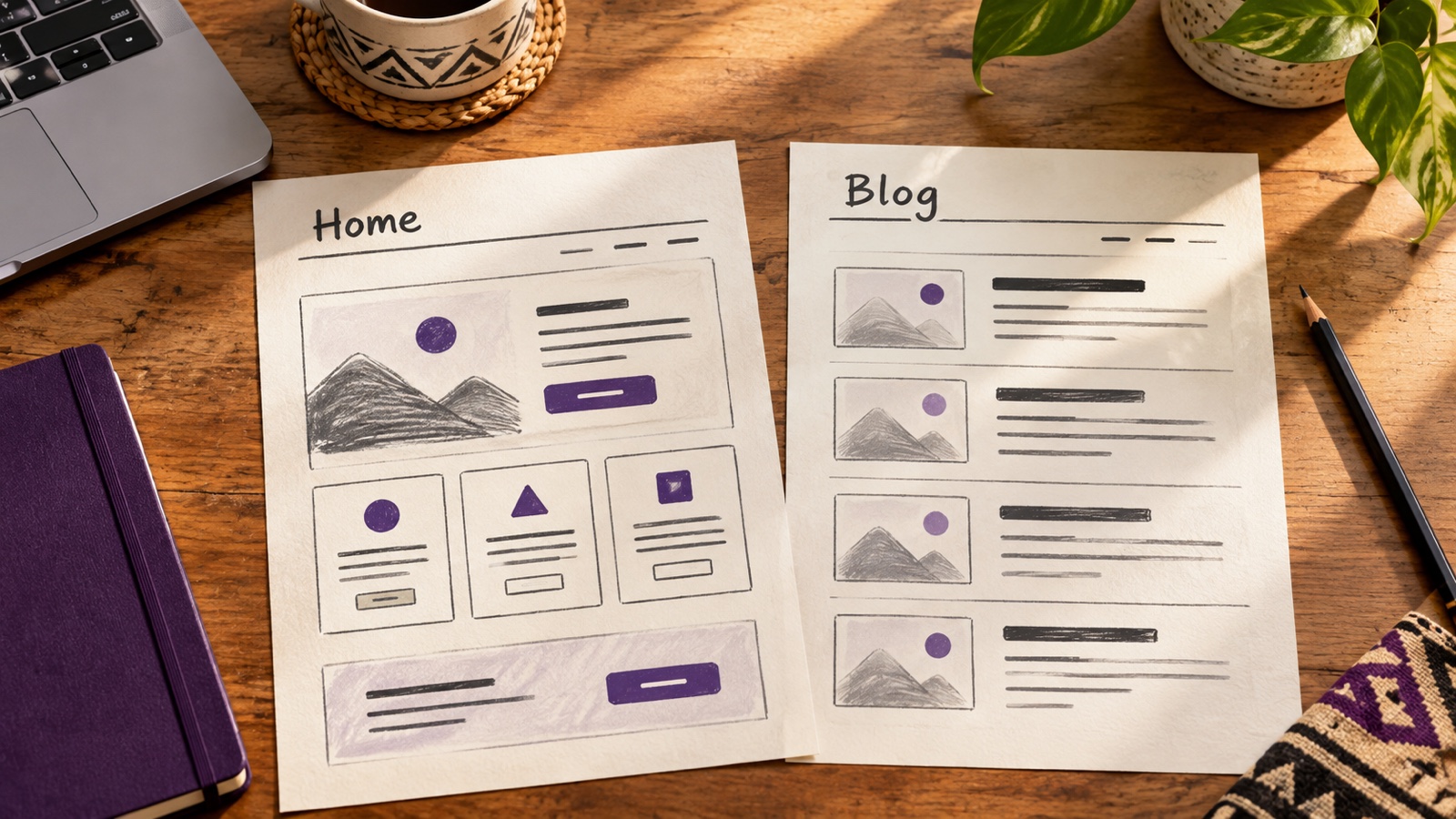
Your homepage does not have to be a list of your newest blog posts. If you want visitors to see your services, work and contact details first, WordPress can show a page you choose at your main domain. Your articles can still have their own Blog page.
Imagine a small photography studio in Accra. Its owner might want a welcome message, a few portfolio images and a clear booking link on the homepage. New stories can appear under Blog instead. This is an illustrative example, not a customer site.
Here is how to set that up using WordPress's built-in controls. You will need access to the WordPress dashboard and permission to edit pages and settings. The names and placement of some design controls vary by theme.
1. Make the Home page
In the WordPress dashboard, open Pages → Add New. Name the page Home or another title that makes sense to your team. Add a short introduction that says what your business does and who it helps. Follow it with the most useful next step: for the example studio, that might be a portfolio link or a way to enquire about a booking.
Keep the first screen focused. A visitor should not have to search through a long biography to understand the offer. Use your own photographs only when you have the right to publish them, and add descriptive alternative text where an image conveys information. Check that contact details are current before making the page public.
You can save the page as a draft while you work. In the block editor, use the View menu and Preview in new tab to inspect the page before publishing; older WordPress interfaces may label this control Preview. Check the actual page on a narrow phone screen as well as a computer. When the content is ready, select Publish. WordPress's page creation guide covers these controls if your editor looks unfamiliar.
Do this before the next step: the page you want to choose as your homepage should be published. Saving only a draft is not enough for the normal homepage selection flow.
2. Make a Blog page if you publish articles
If you want a separate place for posts, create another page through Pages → Add New and call it Blog. Publish it, even if you leave its body empty. WordPress will use that page as the destination for your posts after you assign it in Reading settings. You do not need to paste a list of articles into the page editor.
You can skip this page if you do not plan to show a posts index. For example, a one-page service site might only need a Home page now and add a Blog later.
3. Tell WordPress which page opens first
Go to Settings → Reading in the WordPress dashboard. Under Your homepage displays, select A static page. Choose your published Home page in the Homepage menu. If you made a Blog page, select it in the separate Posts page menu. Then choose Save Changes.
The Home and Posts selections must be different pages. If you leave the Posts page unset, you can still have published posts, but you have not chosen a dedicated index page for them through this setting. WordPress documents the choices in its static front page guide and Reading settings guide.
This changes what visitors see at your site's main address. It does not delete posts, change their individual links or turn your Home page into a blog post.
4. Check the result as a visitor
Open your website's main address in a fresh browser tab. Confirm that the new Home page appears, its main link or button works, and the layout is readable on a phone. If you assigned a Blog page, open that page too and check that recent posts appear there. Use a private window if you want to see the site without the WordPress admin toolbar.
If visitors cannot find Blog from the header, check your theme's navigation. A block theme usually manages it through Appearance → Editor and its Navigation controls; a classic theme may offer Appearance → Menus. Publishing a page and placing it in the menu are separate steps. WordPress's navigation guidance explains the block-theme approach.
If the homepage still looks wrong
First, return to Settings → Reading. Confirm that A static page is selected, the intended Home page is published and the changes were saved. If you are seeing an older version of the page, refresh the browser. Nakroteck's managed WordPress page describes client-area cache controls for supported sites; check your service if a current edit is still not appearing.
If the correct page is selected but its layout differs from the editor, the theme may be applying a Front Page template. On a block theme, look under Appearance → Editor → Templates and inspect the Front Page template before changing it. A template controls layout and may affect more than one page; the Home page holds your business content. On other themes, the design controls may be elsewhere. The WordPress template guide explains the distinction.
If the editor itself refuses to save or publish and reports an invalid JSON response, use our WordPress save-error checklist before retrying changes.
Once your Home and Blog pages work, revisit the homepage when your services or contact details change. A simple, current page is more useful than a polished page that sends enquiries to the wrong place.
Need WordPress hosting for the site you are planning? Compare Nakroteck's current WordPress plans and choose the capacity that fits your website.
Need help choosing the right setup?
Talk to Nakroteck before you buy hosting, domains, SSL, or website services. We will help you choose the right option for your business.