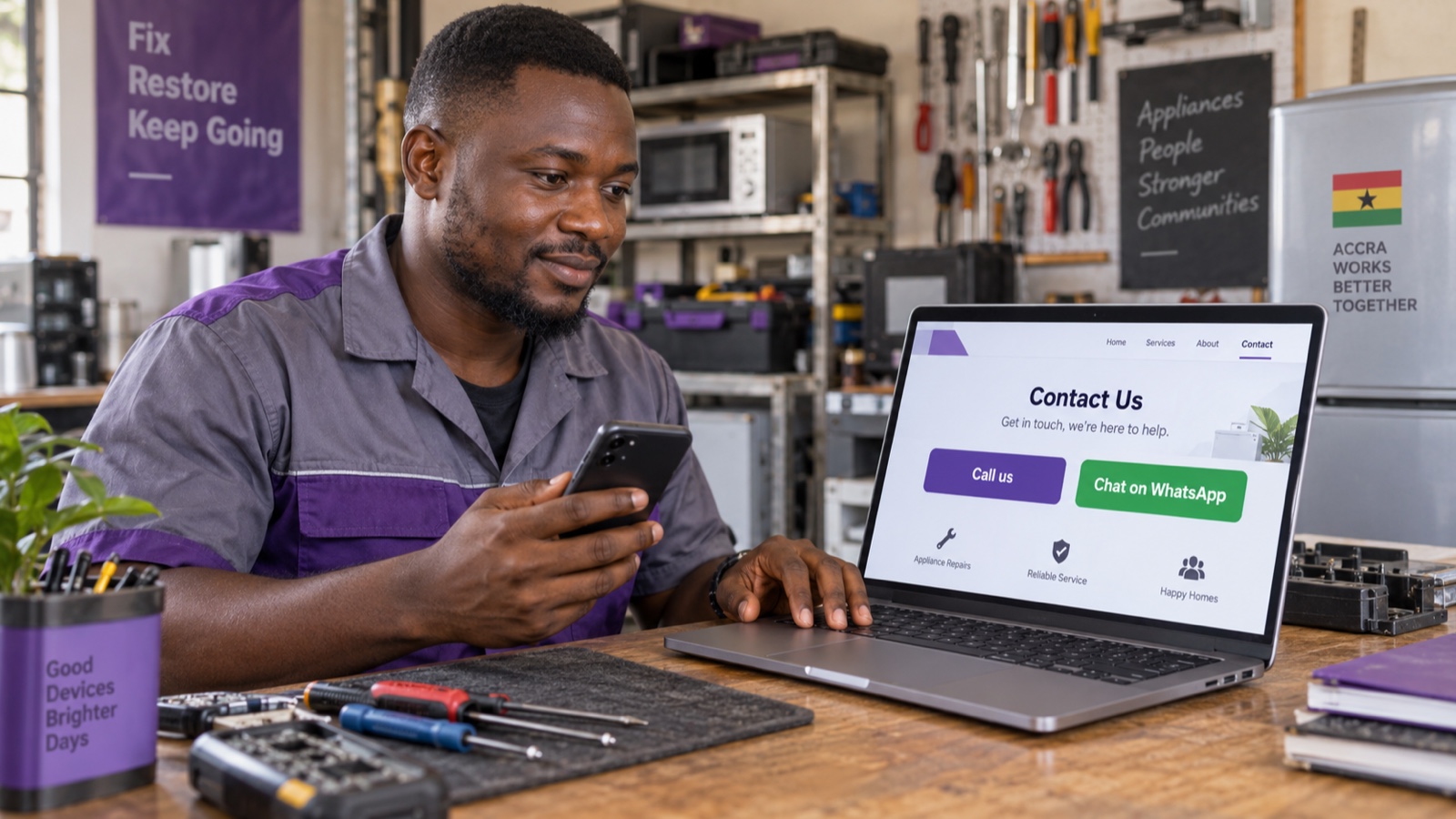
A visitor finds your service on their phone and wants to ask a quick question. A clear contact button saves them from copying a number and switching between apps.
You can add a call link and a WhatsApp link with WordPress’s built-in Buttons block. This walkthrough is for pages edited in the WordPress block editor. You’ll need access to edit the page and a business number that someone actually answers.
For a page built with another editor, use that editor’s button and link controls. Keep the page in its existing editor so you preserve its layout.
Choose the number and explain when you answer
Decide which number receives calls and which receives WhatsApp enquiries. They can be different. The WhatsApp number must have an active WhatsApp account; a link alone does not create one. WhatsApp click-to-chat guide
Use a number you are comfortable publishing. Agree who checks messages and handles calls, then put your contact hours beside the buttons. Avoid promising an instant reply if the same person is also serving customers.
Consider a fictional appliance repair business in Accra. Its Contact page could say:
Ask about a repair or arrange a visit. Calls and WhatsApp enquiries are handled during our stated workshop hours.
Two useful labels would be Call the workshop and Chat on WhatsApp. The reader can understand each action before tapping it.
Prepare the two links
Ghana’s country code is +233. A standard Ghanaian number has nine digits after the country code. If you have the usual local number beginning with 0, remove that first 0 when you put it into international format. Keep any zeros within the remaining number. Ghana numbering reference from the NCA and ITU
These are templates, not working contact details. Each group of nine Xs stands for the nine digits of your own number after the local leading 0.
| Use | Template |
|---|---|
| Usual local number | 0XXXXXXXXX |
| International number displayed on the page | +233XXXXXXXXX |
| Link for the call button | tel:+233XXXXXXXXX |
| Link for the WhatsApp button | https://wa.me/233XXXXXXXXX |
Replace every X before saving. For the WhatsApp link, use the country code and number as digits, without the plus sign, spaces, brackets or dashes. The call link begins with tel:. WordPress link formats and WhatsApp’s link format cover these two types.
A WhatsApp link opens a chat. It does not automatically send an enquiry. A call link’s behaviour depends on the phone, browser and available calling app. Telephone link behaviour
Add the buttons to your page
Open the WordPress dashboard for the correct website. If you use Nakroteck WordPress hosting, start from your hosting service’s WordPress tools.
- Open Pages and edit your Contact page, or the page where customers ask about your service.
- Choose a position near the relevant contact information. Insert a Buttons block using the + control or by typing
/buttonsin a new paragraph. - Write Call the workshop, Call us, or another clear label in the first button.
- Select that individual button, choose its Link control, and paste your completed
tel:link. Apply the link. - Add another button inside the same Buttons block. Label it Chat on WhatsApp and apply your completed
https://wa.me/…link. - Save the changes to a published page, or publish the page when it is ready.
WordPress’s Buttons block instructions show the container and individual button controls. Their appearance can vary with the editor version and theme.
If you are still setting up the page that opens first, our WordPress homepage guide explains that separate task.
Make the buttons easy to find on a phone
Put them after a short explanation of what customers can ask about. A button labelled “Chat on WhatsApp” is more useful than an unexplained icon in a crowded footer.
Keep the labels short, the text readable against the background, and enough space between buttons to tap the intended one. If two buttons look cramped, let them wrap onto separate lines.
Also show the number as ordinary text. A visitor using a computer without a calling app should still be able to read it and call from their phone. Keep the contact hours close to it.
Test the public page before sharing it
Arrange the test with the person who answers the business number. Then open the saved page on a phone as a visitor and check both buttons.
| Check | What to confirm |
|---|---|
| Call button | The intended number appears in the calling flow. Device behaviour varies, so be ready for a call to start. |
| WhatsApp button | The chat belongs to your business number. Check the destination before sending a test message. |
| Page on a narrow screen | Labels stay readable and the buttons are easy to tap separately. |
| Page on a computer | The contact number and hours remain readable, even if a calling app is unavailable. |
If a link fails, reopen its settings and check for leftover Xs, a missing tel:, an extra local leading 0 after 233, or spaces in the WhatsApp address. Confirm the WhatsApp number is registered and active.
If WordPress reports a save error, keep a copy of your edits and check the public page before repeating the save. Our WordPress save-error guide explains what to check next.
When the number or the person answering it changes, update every page that uses it and repeat the test.
Your next step: sign in to Nakroteck, open your WordPress site through its hosting service, and add a contact button to one relevant page. Test that page on a phone before adding the same buttons elsewhere.
Need help choosing the right setup?
Talk to Nakroteck before you buy hosting, domains, SSL, or website services. We will help you choose the right option for your business.