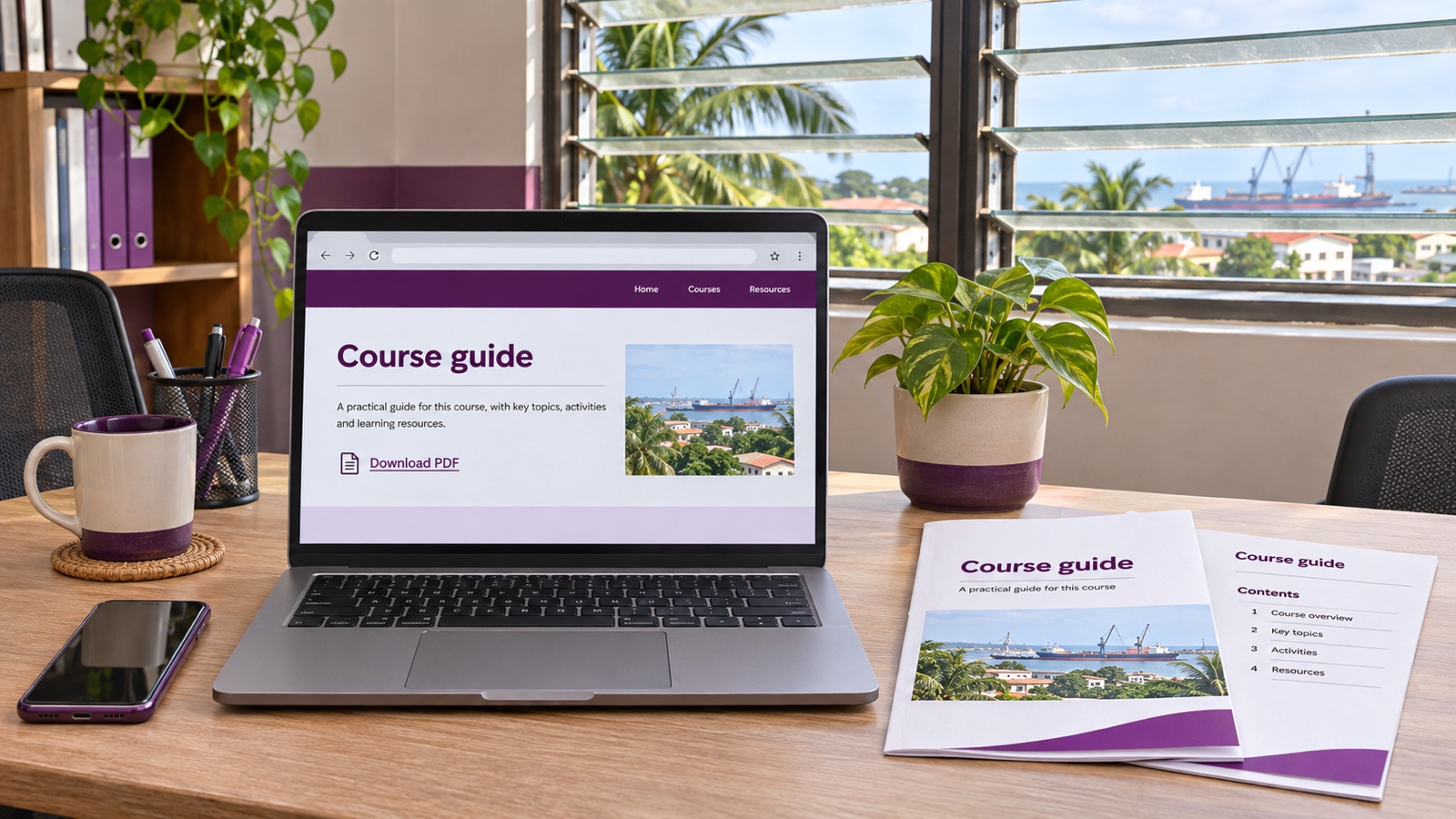
A public course guide, product catalogue or service brochure can be useful to someone comparing your business on a phone. The download needs to be easy to find, clearly labelled and worth opening.
WordPress has a built-in File block for this job. This walkthrough uses the block editor; a site built with a different page builder may show different controls. You need an account allowed to upload files and edit the page concerned.
For the example, imagine a fictional training business in Takoradi preparing a public course guide. The file names and wording below are synthetic, not a customer's documents.
1. Prepare a document you intend to share publicly
Open the finished PDF on your own device first. Check the course names, contact information and any dates. Give the working copy a useful name, such as public-course-guide-v1.pdf, so you can distinguish it from an older draft.
Keep the original editable document separately. When the guide changes, you will want to correct that source rather than piece together an update from screenshots.
Try selecting and copying a short sentence from the PDF. A scan made entirely of pictures needs more work than a document containing actual text. W3C's PDF text guidance explains why image-only text creates barriers. This quick check does not establish that the whole PDF is accessible, but it can reveal an obvious problem.
Use a document intended for the public. A brochure is suitable for this walkthrough; completed application forms, private invoices and lists of students or customers are not. Readers can copy and forward a public file link.
2. Upload the PDF and check what arrived
Sign in to WordPress with your own account. Open Media → Add New; your version may use a slightly longer label for adding a media file.
Check the maximum upload size shown on that screen before choosing the PDF. WordPress's upload-screen documentation describes this displayed limit. Use the value on your site; there is no single file-size allowance that applies to every installation.
Select the PDF and wait for the upload to finish. In Media → Library, open its details and check the filename, type and file size. You can copy the file URL there. The Media Library reference explains these details and controls.
Open the copied URL and confirm that it leads to the intended guide. Uploading a document places it in the library; you still need to add a link where visitors can find it.
If you cannot upload files or edit the page, ask the site owner to check your permissions. Our WordPress colleague-access guide explains separate accounts and roles.
3. Add a File block where the download belongs
Open the relevant page under Pages and choose Edit. For a brochure that supports a service, place the download beside the explanation of that service. Our Services-page guide can help you organise that page.
- Put the cursor where the download should appear.
- Use the + inserter, search for File and add that block.
- Choose Media Library and select the PDF you checked.
- Change the visible file label to something descriptive, such as Public course guide — version 1.
- Where a Link to setting is available, choose the media file for a direct PDF link.
- Enable Show download button if you want that button beside the file link.
WordPress's File block instructions cover these controls. An inline PDF preview is optional; keep a clear file link even if you display the preview.
Add a short introduction above the block. Tell readers what the guide contains and keep essential service information on the page itself. Someone checking course availability should not need to open a PDF just to understand what you offer.
4. Save the page and test it as a visitor
Save your changes, then open the public page in a private browsing window where you are signed out. Test the page on a phone as well as your usual editing device.
Check the complete journey:
- Can you find the download without knowing where it was placed?
- Does the label tell you which document you will receive?
- Does the link open the right PDF, with the current wording and all pages present?
- Is the document readable on a phone without constant sideways movement?
- Can you return to the website after opening it?
You can put the actual file size next to the link to help visitors decide when to open it. For example, Public course guide (PDF, 420 KB) is synthetic wording; replace the size with your file's real value.
A phone may open the PDF in its viewer rather than immediately save it. MDN's download guidance explains that browser settings and other factors affect this behaviour. A visible PDF is not, by itself, proof that the download button failed.
5. Make the next version clear
When the fictional business updates its guide, it can prepare public-course-guide-v2.pdf, check that document, and upload it as a separate file.
The File block's Replace control lets you select another file. After changing the selected document, update the visible version wording and save the page. Repeat the signed-out and phone checks.
Keep a simple note of the page and file URL in use. A corrected link on your website does not change an older file URL someone already shared in a WhatsApp message. Point new messages to the updated page so readers can find the current guide.
Do not delete the earlier file as part of routine tidying until you have considered existing links and any records you need to retain. A new filename also does not remove private information from an older public copy.
6. If the upload or link still does not work
Check the exact error before trying repeatedly. If the PDF exceeds the limit displayed in WordPress, return to the source document and prepare a smaller readable export. Renaming another file's extension to .pdf does not convert it into a PDF.
For the wrong document or a broken link, compare the PDF selected in the block with the file URL that worked in step 2. Also confirm that you saved the page you are actually visiting.
If you are a Nakroteck hosting customer and the problem continues, contact Nakroteck support. Include the affected page URL, exact error, PDF file size and time of the attempt. A screenshot can help, but leave passwords and private document contents out of it.
Need help choosing the right setup?
Talk to Nakroteck before you buy hosting, domains, SSL, or website services. We will help you choose the right option for your business.