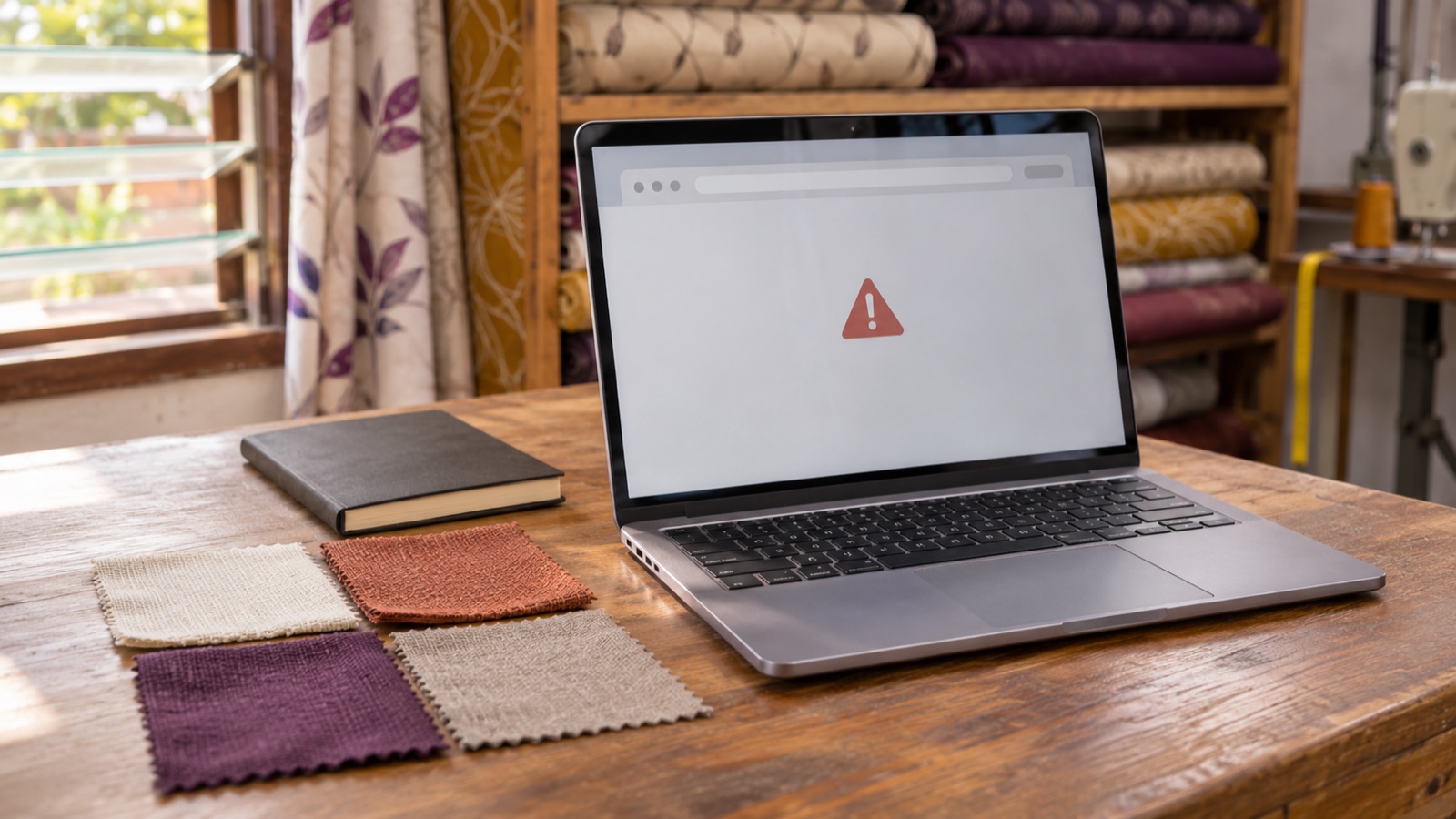
You activate a plugin, open your website and see: “There has been a critical error on this website.” The same message may appear when you try to sign in.
WordPress documents several possible causes of site failures. The message alone does not tell you which component failed. Start by saving the details, checking whether WordPress offers recovery access and protecting the website before making changes.
1. Record the error and the last change
Copy the address of the page that failed. Note the time, including the time zone, and take a screenshot with the address bar visible. Hide personal information before sharing it.
Write down what happened immediately beforehand: activating a plugin, updating a theme, adding code or changing a PHP setting. Include the component name and version if you can see them. Timing is a clue, rather than proof that the latest change caused the failure.
Check the homepage and your usual WordPress login address once. Record whether the problem affects visitors, the dashboard or one particular action. Avoid repeatedly running the installation or update while collecting this information.
A critical-error message is a different starting point from an access-denied page. Keep firewall protection active while the cause is investigated. If the message is about maintenance after an update, use our maintenance-mode guide. If the whole website seems unreachable, begin with the website availability checks.
2. Look for a WordPress recovery email
WordPress includes Recovery Mode, which can help an administrator regain access after some fatal PHP errors. Check the website administration mailbox, including its spam folder, for a message about a technical issue. Email delivery is not guaranteed; an empty inbox does not rule out an application error.
Before using a recovery link, check that its destination belongs to your own website and uses HTTPS. Do not forward the link, publish it in a screenshot or paste it into a support ticket. It contains private recovery information.
If the link is genuine, open it and sign in using your own authorised WordPress account. Note the plugin or theme named in the dashboard notice.
Recovery Mode pauses the failing component for your recovery session. That alone does not mean ordinary visitors can use the website again. Record the notice before deciding on a repair.
If there is no email, the link fails or the dashboard remains inaccessible, keep the details you collected. Do not start deleting folders to force your way in.
3. Verify a recovery copy before making changes
A complete WordPress recovery normally needs both website files and the database. Downloading only the website folder usually does not include the database containing posts, settings and other application data.
Before deactivating components, replacing files or restoring anything, establish:
- Which website the backup belongs to and when it was taken.
- Whether it includes the matching files and database, and completed successfully.
- How it can be restored, by whom and to which destination.
- What has changed since that backup, such as orders, bookings or newly edited pages.
Keep an existing good backup. Where possible, also preserve the current broken state for investigation, clearly labelled separately. A copy made after the error began is not evidence of a working restore point.
A successful-backup label is useful evidence, but a tested restore on an isolated copy gives stronger assurance. If nobody can verify the contents or recovery route, pause changes and establish those first.
Restoring yesterday’s database could remove today’s orders. Agree how newer information will be preserved before approving a restore. Backup availability, retention and restore scope depend on the actual service; check them rather than assuming.
4. Investigate the named component, one change at a time
WordPress’s plugin and theme troubleshooting lesson recommends using backups, a separate testing copy and error evidence to investigate conflicts. A developer can reproduce the problem there and compare the relevant plugin, theme and PHP versions.
If recovery notices clearly identify a newly activated, nonessential plugin, an administrator can consider temporarily deactivating that specific plugin after the backup check. Use Plugins → Installed Plugins → Deactivate; deactivation is different from deletion. Record what changed and check the public result before doing anything else.
First consider what that plugin controls. Deactivating a booking, payment, membership or security component may affect essential functions. A theme failure also needs a plan: changing themes can alter the site’s appearance and available features. If the impact is unclear, leave the change to someone who can assess it.
Do not repeatedly reactivate the suspected component on the live website to demonstrate the crash. Keep it recorded as unresolved while a compatible fix is tested. A temporary workaround that opens the homepage may still leave a business function unavailable.
If the dashboard is unavailable, provide the evidence for a targeted technical investigation. This beginner guide does not require bulk folder renaming, editing PHP files or installing another diagnostic plugin into a failing site.
5. Check the public website after the repair
An error log can help identify where execution stopped. WordPress’s debugging guidance recommends local or staging use for its debug tools. Have a technical person handle detailed logging privately; do not display diagnostic output to visitors or upload a complete log publicly. Logs can contain private paths and application information.
After a repair, exit Recovery Mode if it was used. Open the normal public address in a signed-out browser window and check the page or action that originally failed, as well as the homepage and mobile menu. Check whether a cached page is hiding the current result.
For a shop, a visible homepage is only part of the check. Confirm product and basket pages, and arrange payment checks through an authorised test procedure rather than placing an accidental live charge. For an enquiry site, agree any form submission with the person receiving it.
Record any feature that remains unavailable. If a colleague needs to continue the work, give them their own WordPress access.
6. Give support a report they can trace
For example, a curtain shop in Kumasi could prepare this fictional report, using example.com as a placeholder:
Website: example.com. First noticed: Friday, 10:20 GMT. The homepage and WordPress login show a critical-error message after a plugin was activated. The recovery email names the plugin; its private link has not been shared. No repair changes have been made. Backup time and contents still need verification. New enquiries may have arrived since the last backup.
Replace those details with what you actually observed. Attach the screenshot and include the recent component change, whether recovery access works and what is known about the backup. Leave passwords, recovery links, database exports and private customer information out of the message.
If your website is hosted with Nakroteck and still shows the error, contact support with that report so the team can investigate the affected service.
Need help choosing the right setup?
Talk to Nakroteck before you buy hosting, domains, SSL, or website services. We will help you choose the right option for your business.